
Configure your e-mail (Desktop)
Using Thunderbird
– on desktop –
This wizard is illustrated with Thunderbird, the versatile fully standard-compliant e-mail client, available on almost all platforms.
Why Thunderbird and not other e-mail client software, such as Google Mail ?
Because Google Mail does not respect the Internet standards, bind you to a commercial service, leading to your data spying, and is not a FreeSoftware.
FreeSoftware is not Freeware (gratis). Read our article about this here.
Download Thunderbird
Download Thunderbird from its official web site:
https://www.thunderbird.net/download/
Your parameters
Depending on your exact environment, the steps and layout may vary, but what you need to know are the following parameters:
E-mail server type: IMAP (not POP, neither POP3, …)
The “incoming” server, the IMAP server, is: imap.abilit.eu
Security: SSL/TLS with “normal password”, port 993
The “outgoing” server, the SMTP server, is smtp.abilit.eu
Security: “StartTLS” with “normal password”, port 587
First run
Once Thunderbird launched for the first time, it will propose you to configure you e-mail account “automatically”. Actually, it means it will guess the configuration. You can accept it, but it won’t be enough:
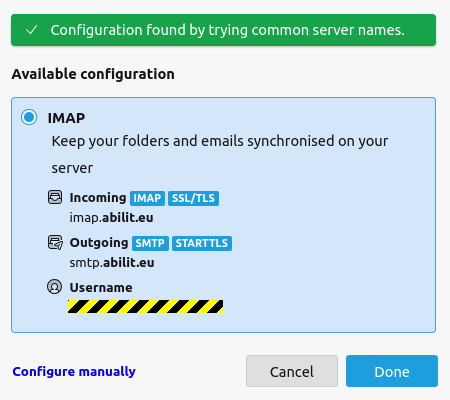
You can however click on “Done”
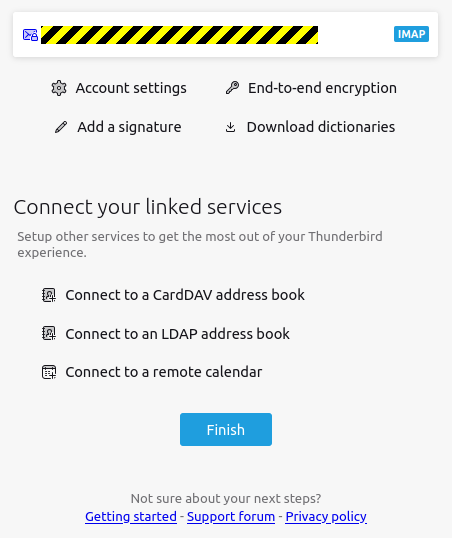
And then on “Finish”.
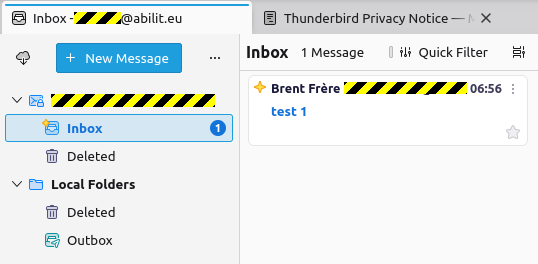
You are now ready to receive your first test message:
Required tuning
By right-clicking on your e-mail address (or other ways), you will access your account settings, as this:
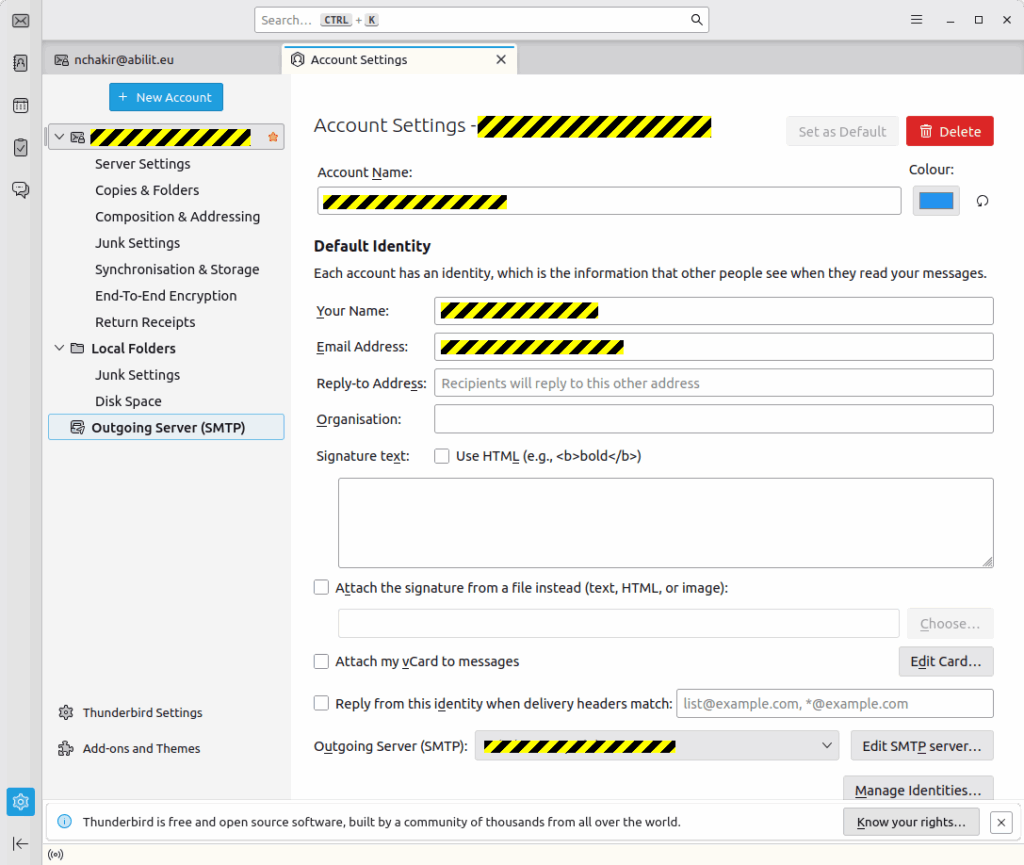
Here, you can setup your automatic e-mail signature, containing all your details, a text or even a graphical way.
It is now important to click on “Edit SMTP server”, as Thunderbird didn’t guessed some of the parameters correctly:
Check the “Connection Security” parameter, the port, …
Correct the User Name: As our SMTP server is shared with some Abil’I.T. customers and sub-domains, you must replace
“<your login>” with
“<your login>@abilit.eu“.
Useful sub-folders…
In order to have access to all your e-mails, including the ones you sent, from an another device, it is required to have those e-mails stored in folders that are hosted on the server. You should then create those folders, under your IMAP account, using the “New folder” function:
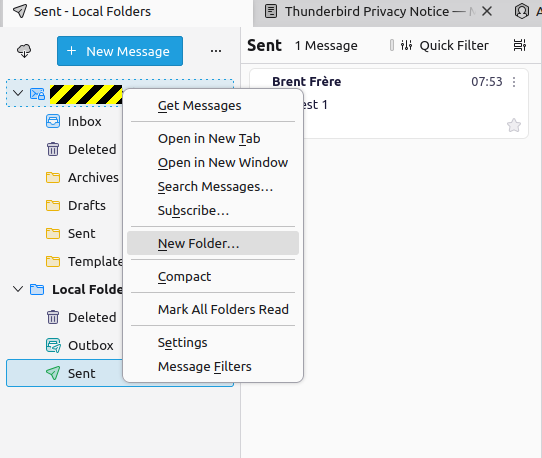
It is advised to create
- a “Sent” folder, for the sent e-mails
- a “Draft” folder, for the system to save your e-mails while you are writing it
- a “Template” folder, to store your models
- an “Archives” folder, a “Junks” folder, …
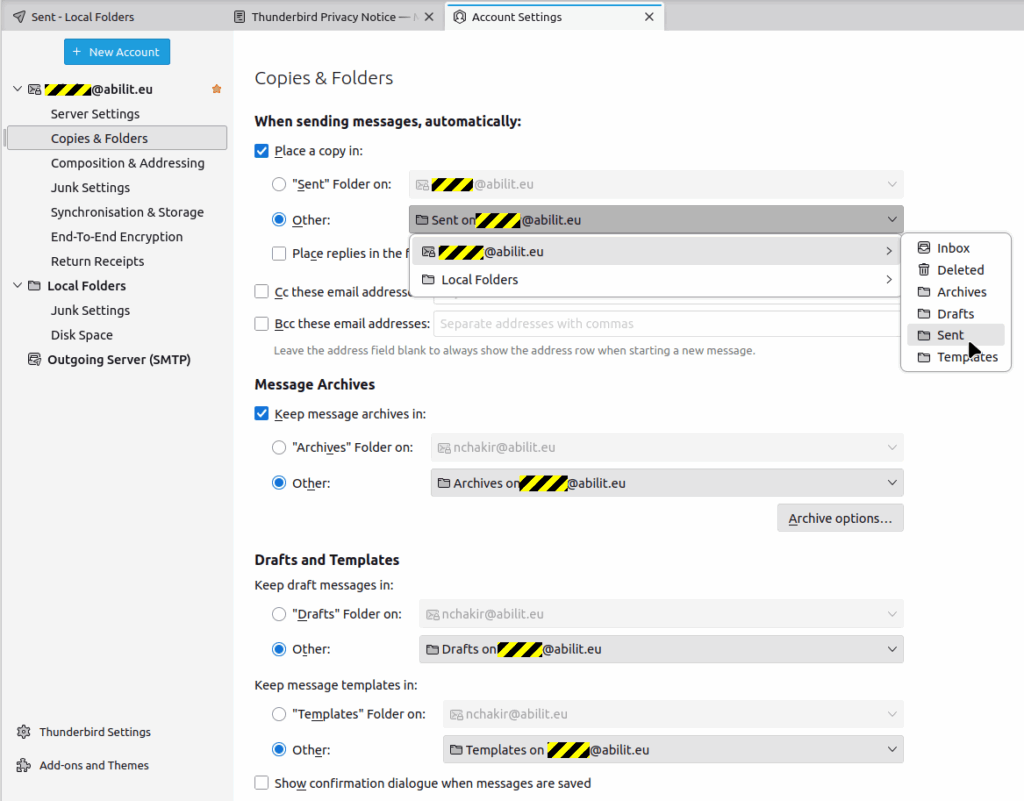
Then, you will configure your Thunderbird so that it will save those mails in those locations instead of some obscure local folder. As example, by selecting the server-based folder for Sent e-mails instead of the local one (default), you will make your sent e-mails available to other Thunderbird instances, as example Thunderbird on your Android Smartphone.
In “Copies and Folders”, select the folders located on the server instead of local ones:
First e-mail sending
You can now test to send your first e-mail !
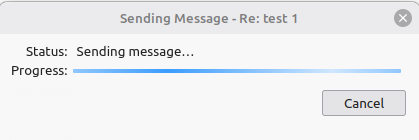
Once the “Send” button clicked, you should see:
At the very first sent, your Thunderbird will ask you for the password:
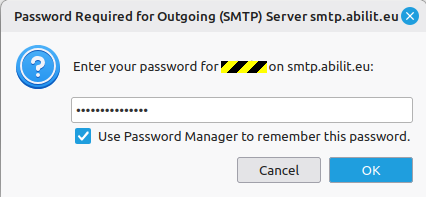
Don’t forget to tick the “remember” box, so that you won’t have to type it again (only on trusted, unshared computers…)
In case of problem, call our help-desk. We may even be able to remotely assist you.